Need TV Repair Services in Nairobi?
Certified technicians dispatched to you — same day.
LG Television: The Audio in My LG TV Stopped Working for Some Reason, How Can I Fix It?
By Television Repair Kenya
Few things are more frustrating than settling down to watch your favorite show only to discover that your LG television has lost its sound. While the picture continues to display perfectly, the absence of audio can make your viewing experience completely unsatisfying. Before you panic and assume you need expensive professional repairs, there are several troubleshooting steps you can take to resolve this common issue. In this guide, we'll walk you through the most effective solutions to get your LG TV's audio working again.
Check the Basic Settings First
The first step in troubleshooting any audio issue is to verify the most obvious potential causes. Start by checking your TV's volume level using the remote control. It may seem simple, but sometimes the volume gets accidentally muted or turned down to zero. Press the volume up button and look for the on-screen volume indicator to confirm the audio isn't muted. If you see a mute icon, press the mute button on your remote to restore sound.
Next, examine your TV's audio output settings. Navigate to your LG TV's settings menu, usually accessible through the gear icon on your remote. Look for the audio or sound settings section. Ensure that the TV speakers are selected as the audio output device. Sometimes the TV may be set to output audio through external speakers, a soundbar, or Bluetooth devices, which would explain why you're not hearing anything from the built-in speakers.
Restart Your Television
A simple power cycle can resolve many electronic glitches, including audio problems. Turn off your LG TV using the remote, then unplug it from the power outlet. Wait for at least 60 seconds to allow the TV's internal components to fully discharge. This brief waiting period is crucial as it allows the TV's memory to clear and can reset temporary software issues. After the minute has passed, plug the TV back in and turn it on. Check whether the audio has returned.
Inspect External Connections
If you're using external devices like cable boxes, streaming devices, gaming consoles, or DVD players, the problem might not be with your TV at all. Test your TV's audio by switching to different input sources. Try the built-in apps or the TV's antenna input to see if sound works on those sources. If the audio works on some inputs but not others, the issue lies with the external device or its connection cable rather than your TV.
Examine all HDMI cables and other audio connections for damage or loose connections. Unplug and firmly reconnect each cable, ensuring they're properly seated in their ports. HDMI cables can sometimes fail or become partially disconnected, resulting in video transmission without audio. If possible, try replacing the HDMI cable with a different one to rule out a faulty cable.
Update Your TV's Software
Outdated firmware can cause various issues, including audio problems. LG regularly releases software updates that fix bugs and improve performance. To check for updates, go to your TV's settings menu, select "All Settings," then navigate to "General" and look for "About This TV" or "Software Update." If an update is available, follow the on-screen instructions to install it. Ensure your TV remains connected to the internet during this process and don't turn it off until the update is complete.
Adjust Advanced Audio Settings
LG TVs come with various audio enhancement features that can sometimes cause conflicts. In your audio settings menu, look for options like "Clear Voice," "Sound Mode," or "Audio Equalizer." Try disabling any audio enhancement features temporarily to see if they're causing the problem. Additionally, check the "Digital Audio Out" settings and ensure it's set to "PCM" rather than "Auto" or "Bitstream," as compatibility issues with certain audio formats can result in no sound.
Factory Reset as a Last Resort
If none of the above solutions work, a factory reset might be necessary. This will restore your TV to its original settings, potentially resolving any software-related audio issues. Before proceeding, note that this will erase all your personalized settings, installed apps, and preferences. To perform a factory reset, go to "All Settings," select "General," then "Reset to Initial Settings." Follow the prompts and allow the TV to restart.
When to Seek Professional Help
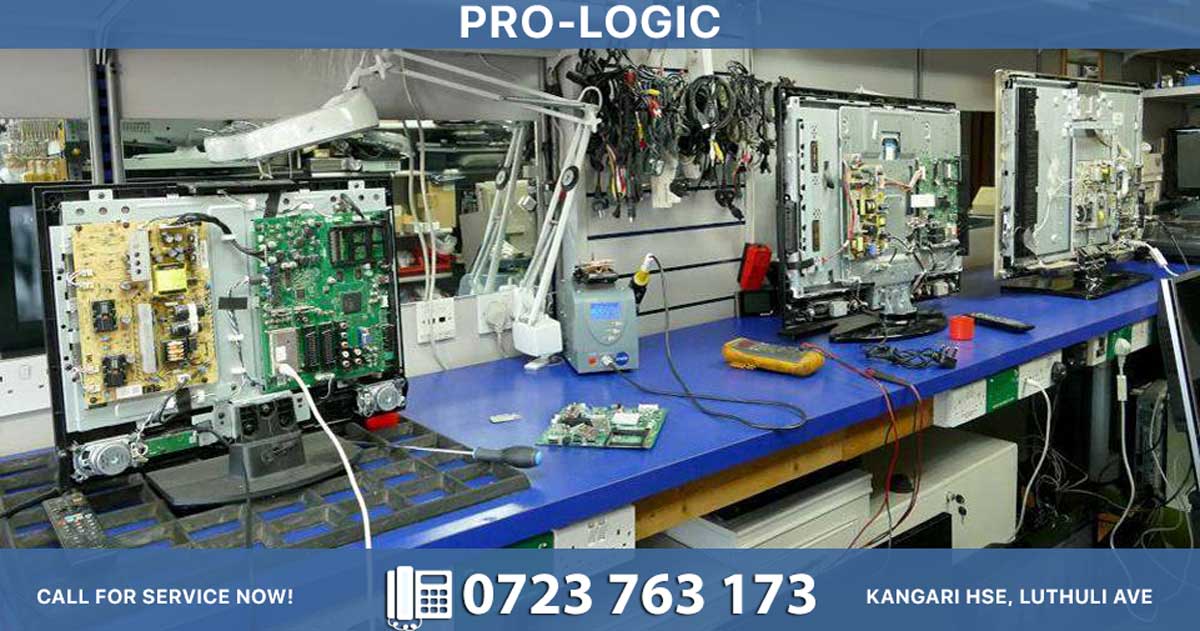
If you've exhausted all these troubleshooting steps and your LG TV still has no audio, the problem may be hardware-related. Internal speaker failure, damaged audio processing components, or motherboard issues require professional diagnosis and repair. At this point, contact a qualified television repair service in Kenya who specializes in LG products. They have the expertise and tools to diagnose complex hardware problems and can provide an accurate assessment of repair costs versus replacement.
Remember, regular maintenance and proper use of your television can prevent many issues. Keep your TV's software updated, protect it from power surges with a quality surge protector, and ensure adequate ventilation around the unit. With proper care, your LG television should provide years of reliable audio and video entertainment.